
Alt text for images
While they say a picture is worth a thousand words, if you can't see the image, it's only as good as its text alternative (alt text). Alt text can be added to an image in Office documents, PDFs, Mass.gov, emails, social media, and HTML.
When a screen reader user navigates to an image, the screen reader software will announce the description provided in the alt text. If you do not provide alt text, it will instead announce the image file name, which is unhelpful. It's important that every meaningful image has alt text. What that alt text is might be different depending on the purpose of the image.
How to write alt text
Alt text should always be descriptive and brief. A maximum of two sentences is recommended, or around 125 characters. It is also good to include sentence punctuation while writing alt text, so that the screen reader will pause at commas and periods. While plain text on the page can be navigated at any speed with a screen reader - by character, word, sentence, paragraph - alt text is announced all at once and is not able to be navigated. This is why want want to keep our description brief, and also why we avoid images of text - it is often far too much to include in alt text. We'll discuss more about images of text later in this guide.
When writing alt text, it can be helpful to ask yourself four questions:
- Does the image tell a story that is related to my content?
- Is the image literal and necessary to understand my content?
- Is the image functional?
- Does the image have any meaning at all?
If an image tells a story, it makes sense to write alt text in that context, where you describe the image concept instead of the specific contents. If an image is a screenshot in a tutorial, the alt text should be more literal and exact. If the image is functional like an icon, then it's better to describe its function rather than how it looks. And if an image is simply decorative, it should be marked that way. Let's review a few examples.
Literal or functional images
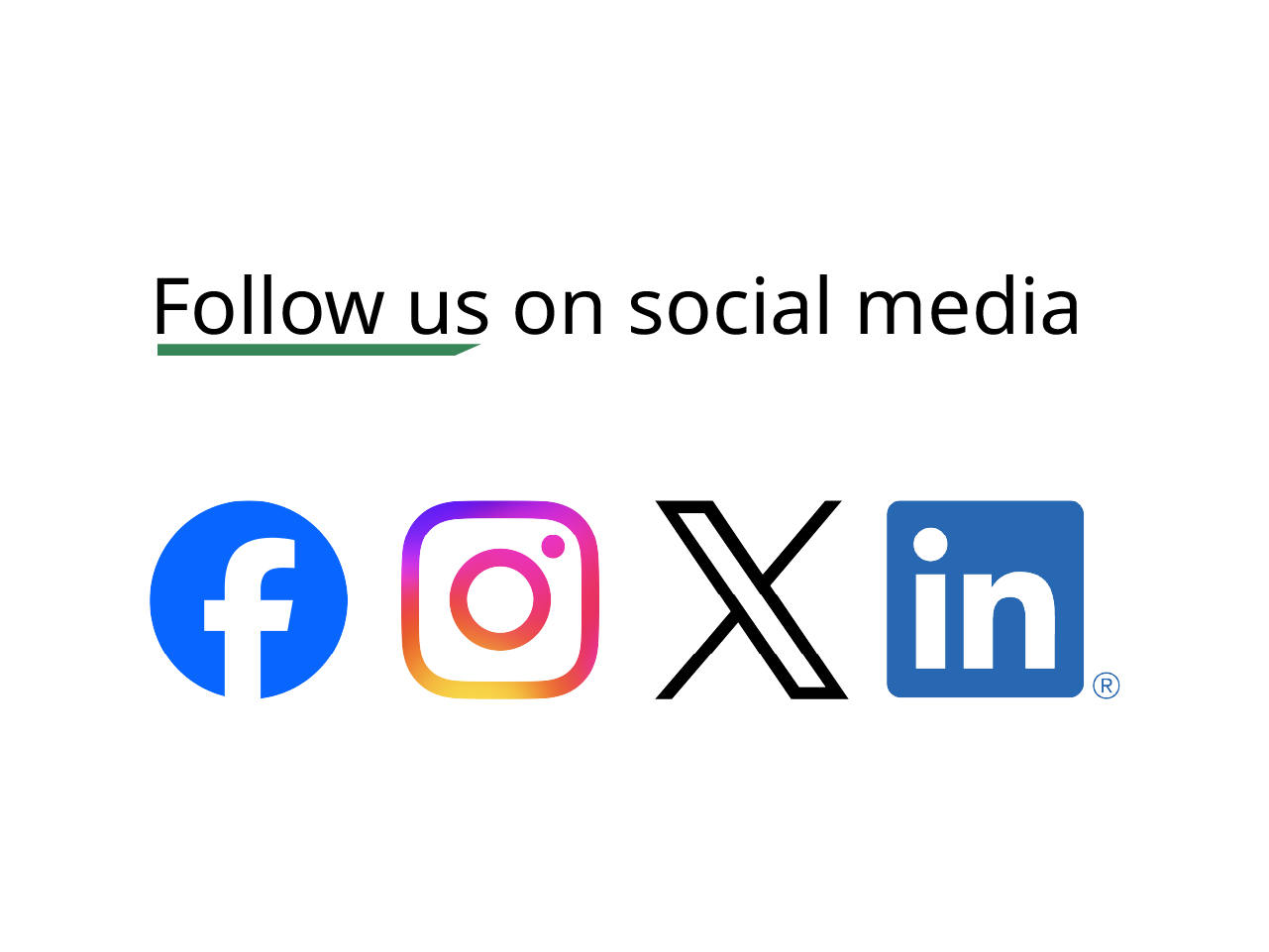
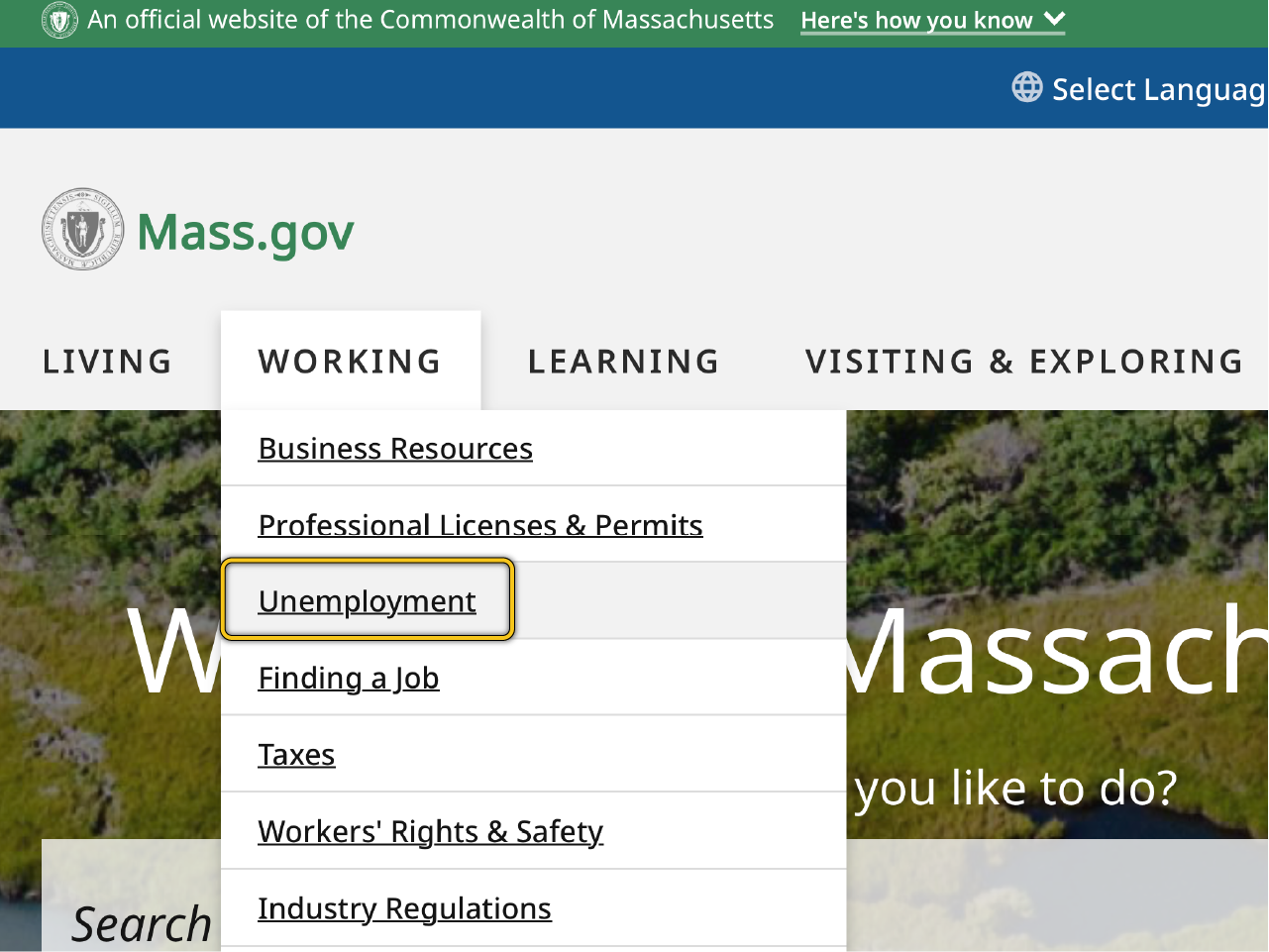
Images that are literal might be a screenshot added to instructions. This kind of image would need alt text that highlights the specific purpose of the image. Not every detail in the image needs to be conveyed in the alt text, just the image's purpose. Similarly, a functional image, like an selectable icon button, would have alt text that calls out the function or destination when selected. Following are some examples of literal and functional images.

Images that tell a story
Images are used as a way to help your audience connect more with your content. It is important that we convey the actions or emotions present in these images through alt text. It is also important that we are inclusive with alt text. Images of people will almost never be decorative and always require alt text. Alt text for these kinds of images will always be a judgement call, based on why you chose the image for that context. If an image is of a specific person, it might describe that specific person, or it may describe the action or emotion that person is expressing in the image. Following are some examples of images that tell a story.



Decorative Images
While it's possible to mark images as decorative, it is not often the right way to go. Most of the time, if you include an illustration or photo, you are doing it for a reason besides decoration. Plan to write text for all images like this.
If the graphic is simply a shape, texture, flourish, pattern or background, then that is likely the appropriate time to mark it as decorative. If text exists with the image that would make alt text redundant, such as a phone icon next to a phone number, that is also a time when an image should be marked as decorative.


Images of text
Images of text should be avoided. Sometimes, like with social media or logos, this is unavoidable. A logo is an exception to this rule, where changing the image to plain text would cause it to lose meaning. On social media platforms, it's important to include the text that would be in the image in the post as well. Find out more in our Social Media Accessibility guide.
Images of text or tables cannot be accessed with a screen reader, and the content within them will typically be far too much to keep to two sentences in alt text. Make sure that you replace images of text with actual text on the page, whether that is on a web page or in a document.
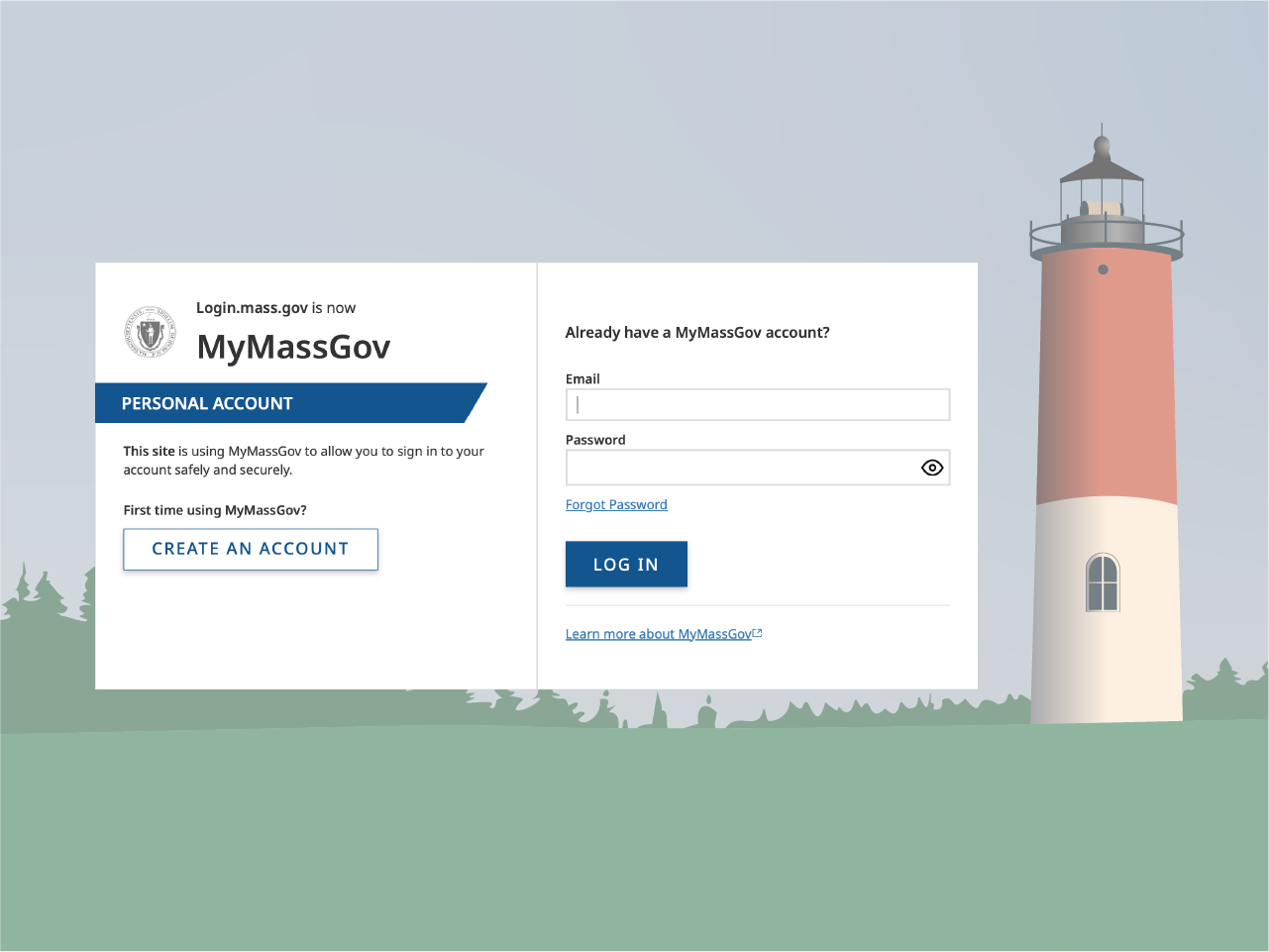
This does not mean you can't use a screenshot that has text in it. For example, if you are making training materials and use screenshots to show where an item is in a process or application, that is perfectly fine. However, do not use a screenshot of text to replace text on the page. If the viewer is meant to read all of the text in the image, that is when it should instead be text on the page.
Complex images
Some images are too complex for alt text, like an organization chart, or a line graph. Those types of images have different considerations, and may require a long description, or be accompanied by a table of data. Find out more about these types of images in our Data Visualization Accessibility guide.
Infographics are another type of complex image. It is not possible to add enough alt text to make an infographic clear to users of assistive technology. Typically to make an infographic accessible, you have a few options:
- If building your infographic in a tool like InDesign or Canva, export your infographic as a PDF and remediate it for proper tag structure in Adobe Acrobat.
- If building your infographic in a tool like Adobe Illustrator, and it is a flattened graphic where text cannot be selected, you will need to add a long description of your infographic. Include in the alt text of the graphic something like "Infographic describing process X. Long description follows." Then place a full text description of the infographic on the web page or following page of the PDF.
Adding alt text
Techniques for adding alt text will vary depending on whether you are making a Microsoft Office Document, editing a PDF in Acrobat, adding an image to a Content Management System (CMS), Learning Management System (LMS), or building a custom web page with HTML.
Video: Adding alt text
Alt text on different platforms
Microsoft Office documents or Outlook email
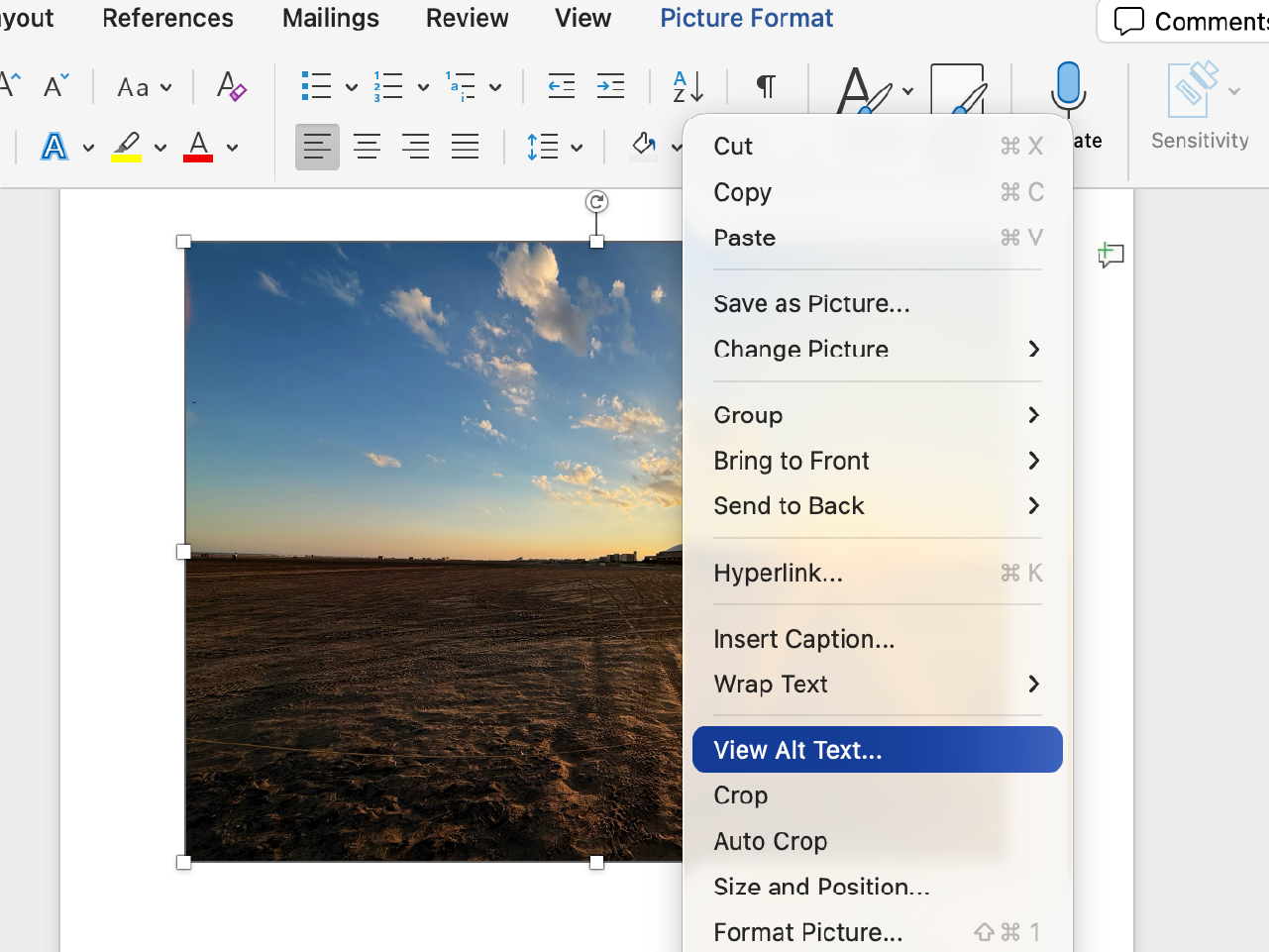
In Word, PowerPoint or Excel, if you do not add text to an image, the app will automatically generate example alt text. Because this is not always accurate, be sure to add your own alt text, or mark it as decorative.
- Right click an image in your document
- Select View Alt Text...
- In the Alt Text Panel, type in a description
- If the image is decorative, select the Mark as decorative (not available in Outlook)
PDFs with Adobe Acrobat Pro
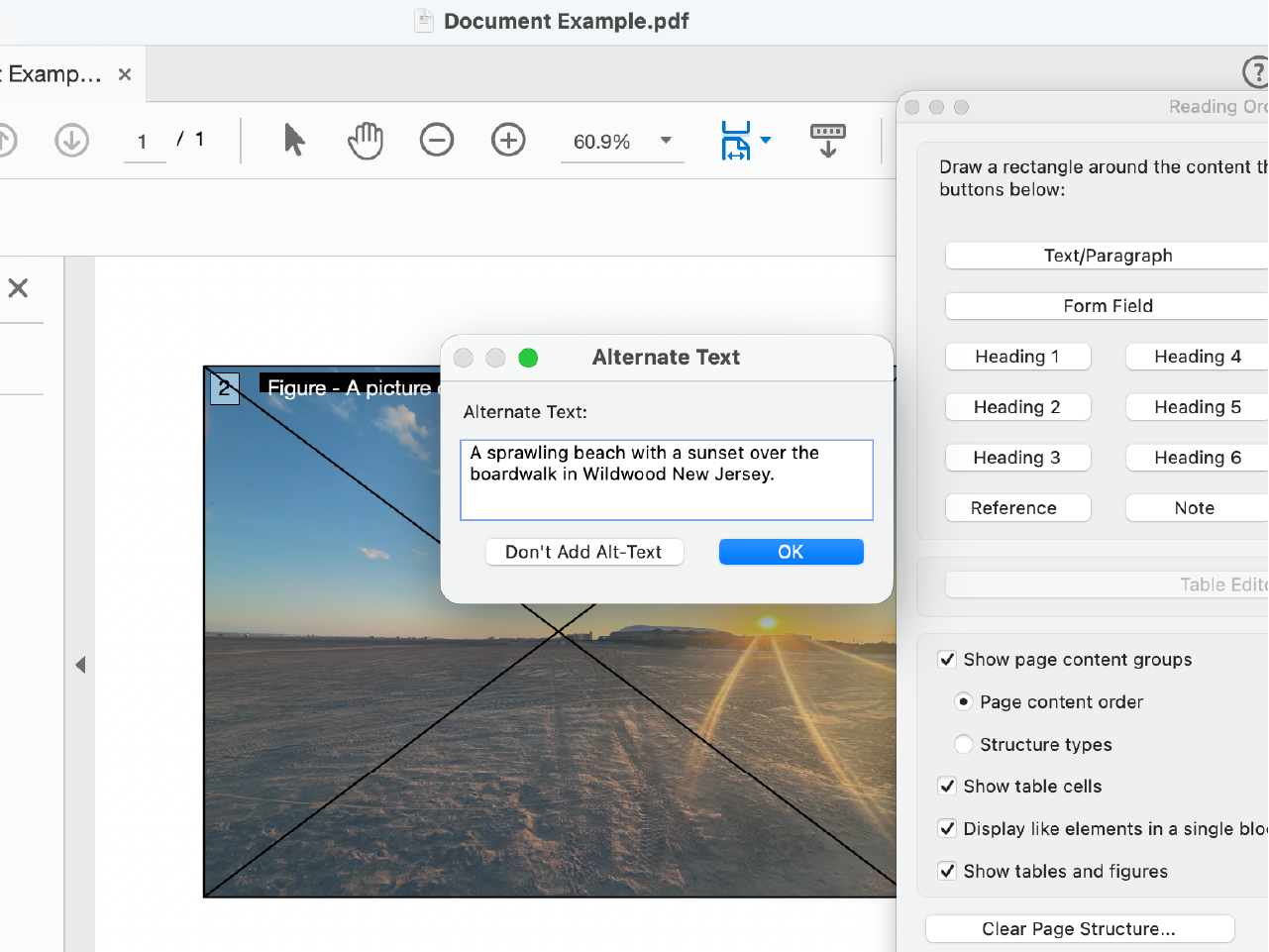
If you need to make changes to an existing PDF, you can do so in Adobe Acrobat Pro.
Navigate to Tools > Accessibility
- Choose Set Alternate Text
- Acrobat will detect all figures in your document and display any alt text that exists
- Enter the alt text for each image as it is highlighted
Or...
- Navigate to Tools > Accessibility
- Open the Reading Order tool
- Select the figure on the page
- Right-click and choose Edit Alternate Text
- Enter the alt text for the image in the box that appears
Content Management Systems (CMS) and Learning Management Systems (LMS)
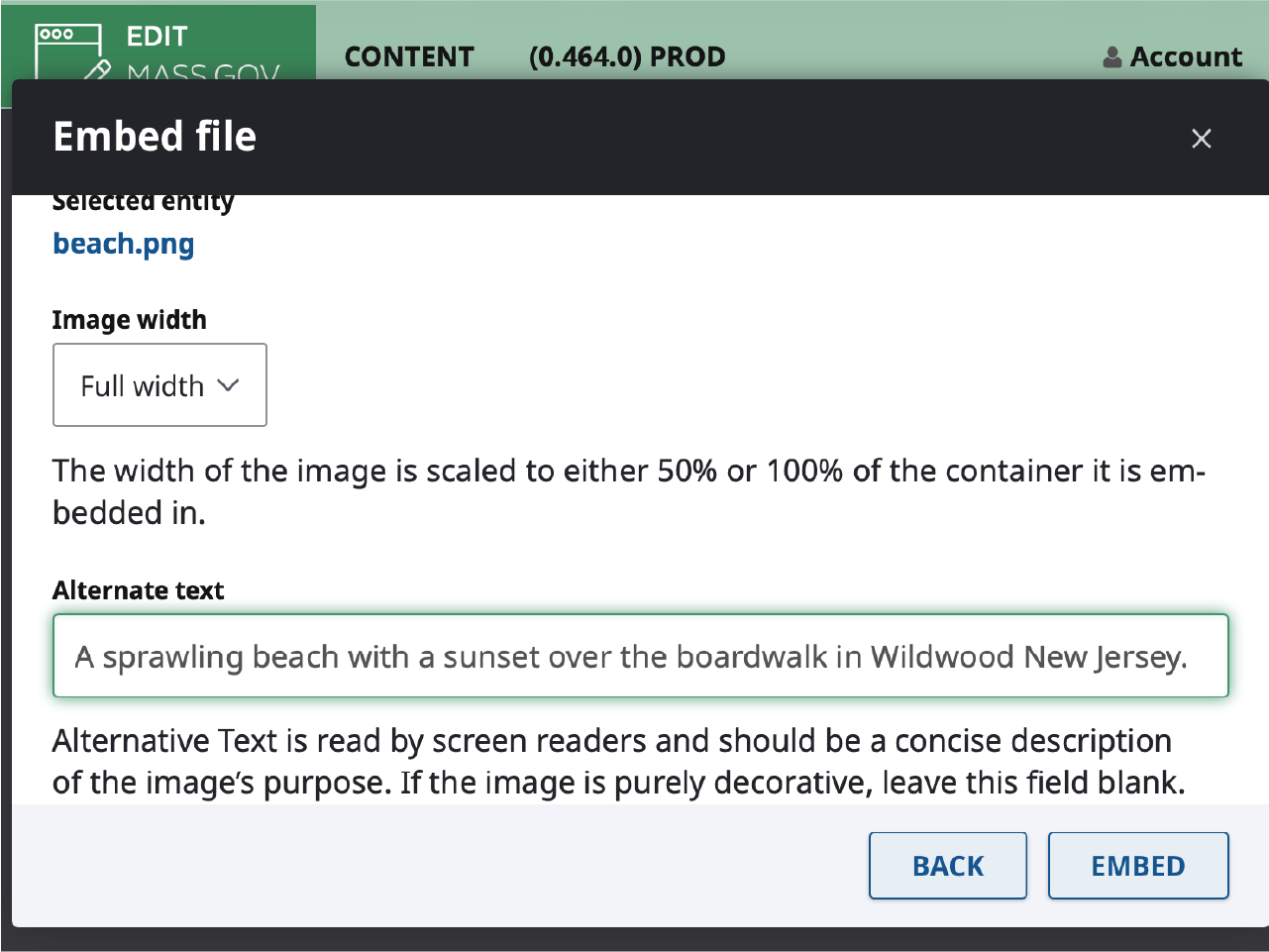
When you upload an image to a CMS or LMS, you will typically be prompted with a box for alt text. The process will vary slightly based on the system you are using. Be sure to add alt text to this box. If you don't one of two things may happen depending on the configuration of your system: It may be marked as decorative and skipped completely, or it may leave the alt text blank which announces the filename of the image, which is not a helpful description.
HTML code
Within an <img> tag, you can use the alt attribute:
Code - Alt text description
<img src="/image.jpg" alt="One to two sentence description for the image." />
If the image is decorative, and you want to tell a screen reader to skip it completely, enter empty quotes, called a null, like the following:
Code - Alt text null
<img src="/image.jpg" alt="" />