
Making accessible videos
Videos can be exciting, informative and evocative. The nature of video requires that a viewer engage three abilities at once: sight, hearing, and cognitive processing. A lot of information can be lost if one of these is impaired. An accessible video provides alternatives for visual and auditory content and offers a way to review the content that is separate from the timing of the video. This guide will ensure videos that you deliver are accessible to all users.
Captions
Captions are synchronized to your video, and differ slightly from "subtitles" by definition. Subtitles are defined specifically to show a translation of spoken language on the screen. Captions are determined by the predominant language of the video.
For example: Your video is primarily in English, but contains passages where people are speaking Spanish. Captions should be written in English, and the Spanish language should be identified by prefacing that section of dialog with [Speaking Spanish].
Closed captions
"Closed" captions are text synchronized and overlaid on video that can be turned on or off at any time. When a video has captions that are "burned in" to the video and cannot be turned off, those are referred to as "open" captions. Closed captions are the preferred standard for accessibility for a few reasons: screen reader software can interact with them if needed, and viewers who find them distracting can turn them off. If you are putting video on a platform that doesn't allow closed captions, like some social media sites, then open captions should be used. When writing captions, follow the following guidelines. (Some specific guidelines taken from Section 508 (opens in new tab).)
Caption Guidelines
- Captions must be 99% accurate, so any auto-generated captions must be checked for accuracy
- Text should be synchronized with audio, and appear at the same time as the words are spoken
- If there are multiple speakers in the video, identify each
- If there is meaningful music or a meaningful sound, identify it
- If there is no meaningful audio, keep captions off the screen
- If there is a long passage with no narration and only music, add a [Music.] caption at the beginning of the segment, so the viewer knows it isn't missing captions
- If words are spoken with a specific emphasis (yelling, crying), identify the emotion
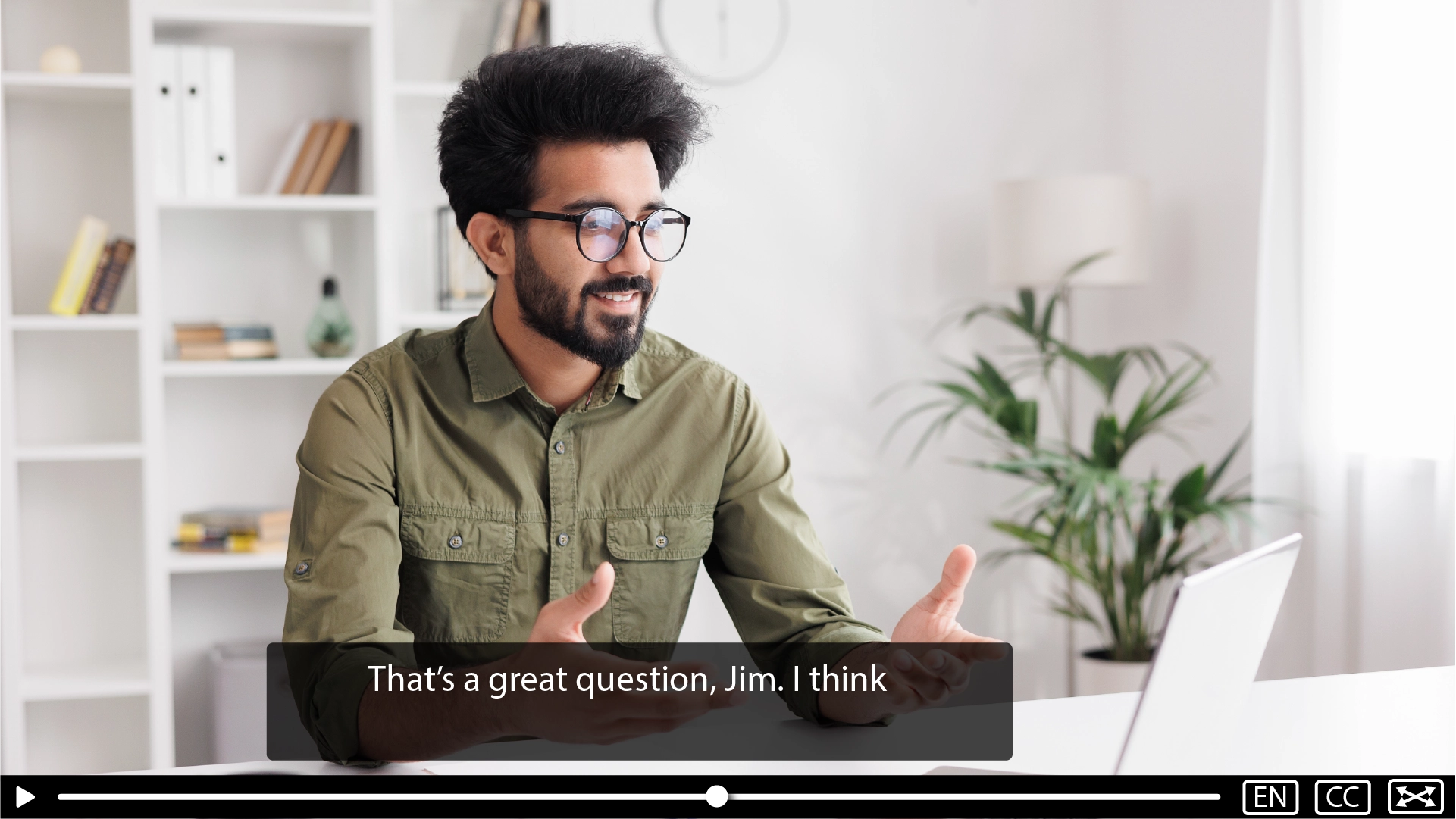
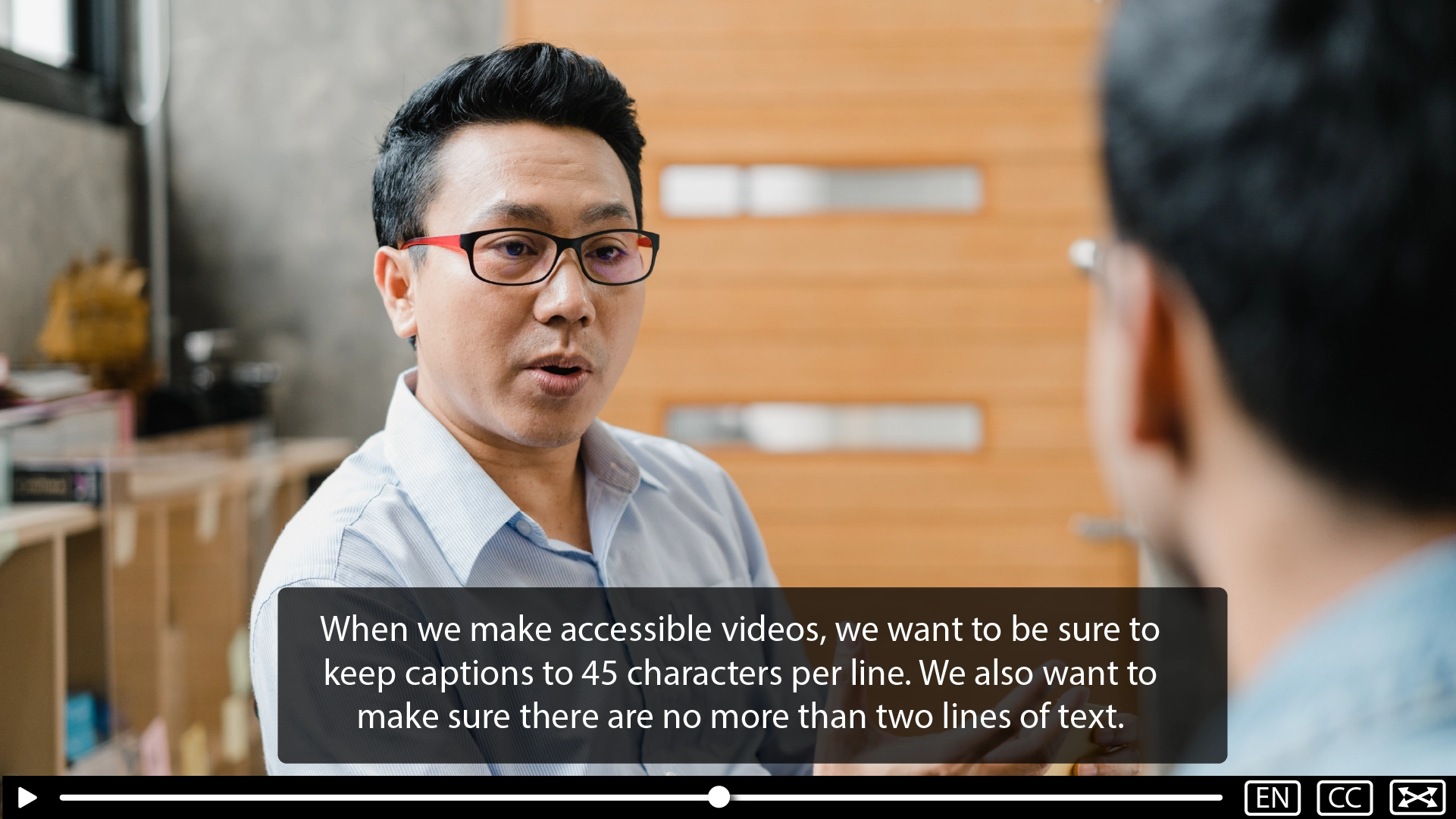
- Use a sans serif font, like Helvetica or Aria, and 18pt font size
- Use white text over a black translucent background
- Use no more than two lines of text at a time
- Use no more than 45 characters per line
- Keep captions on screen long enough to read (minimum 1.5 seconds for short, one-line dialog)
- Break captions at logical points, usually a comma, period, or end of a thought
- Display captions at the center of the lower third section of the video, unless these captions block important onscreen text
- Do not use motion or animation with captions
- Transcripts and captions must follow proper color contrast requirements
Caption Examples
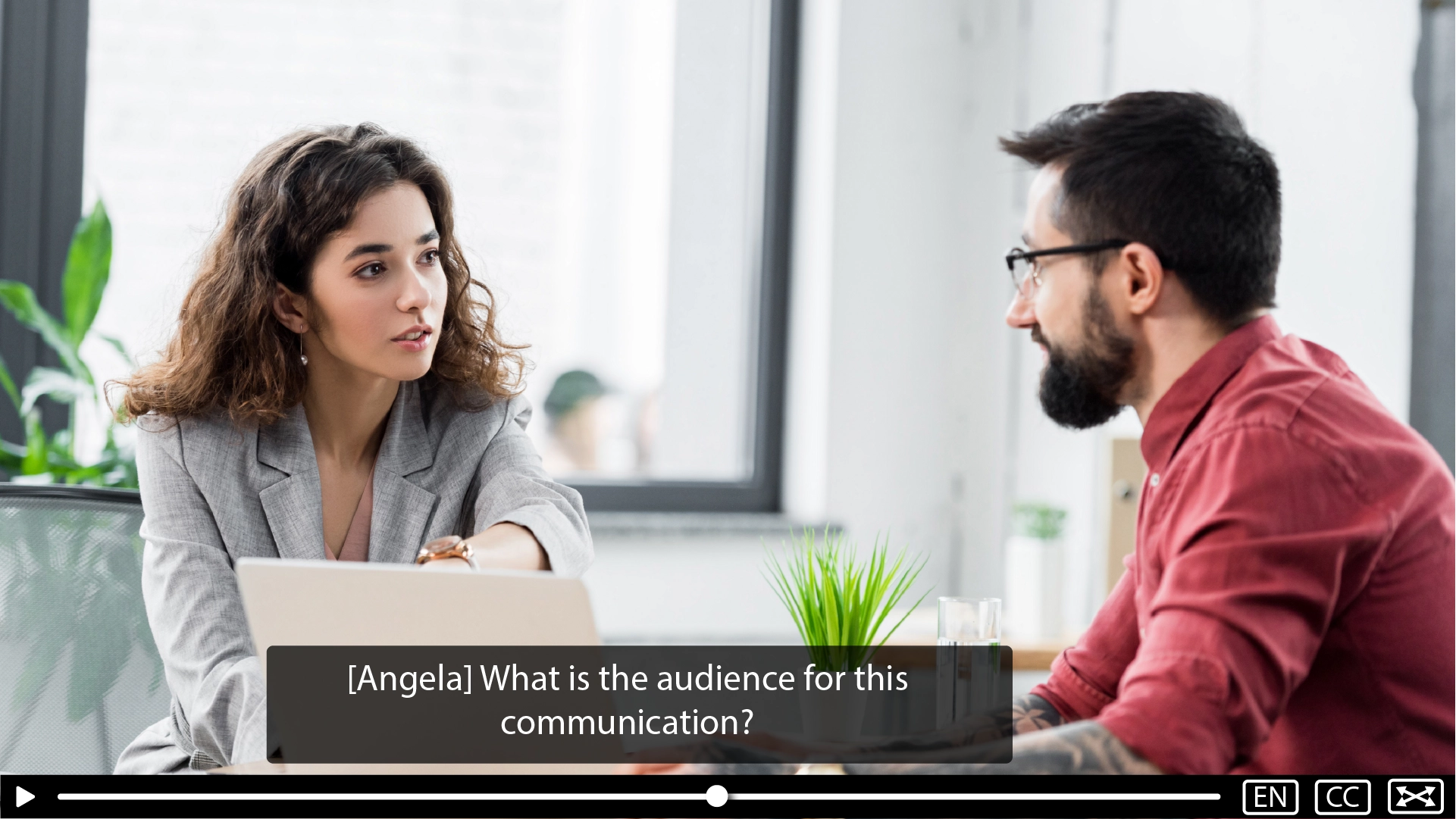
How to add captions in video applications
Transcripts
Transcripts are required for audio-only content like a podcast, and either a transcript or audio description is required for video-only content like a slide show with music. If captions and an audio description are present for a video with audio, transcripts are not required under WCAG 2.1 AA (opens in new tab) , but are highly recommended. Transcripts can be even more important than captions based on the type of assistive technology being used to consume content. For someone who has both hearing and visual impairments, a transcript will be the primary way to access the information. Additionally, a transcript offers a way for people to get the content of your video if the pace of the speakers in the video is too fast to process. Even if your video has no audio, include a transcript that describes what is happening in the video, so meaning can still be conveyed.
Transcripts can accompany a video in several ways depending on what is available to you. Some video players will allow a transcript to appear alongside the video that you upload. If the player you are using does not allow that (like YouTube) then you should add a transcript to the page on which the video is embedded. This might be directly on the page after the video, wrapped in a collapsible section on the page below the video, a link, or a .txt or .doc file available to download.
When embedding a transcript in Mass.gov, you can copy and paste your transcript into a text box when you add your video to the page.
Transcript Guidelines
- Must contain all spoken words
- Must contain any words that appear on screen and are not spoken, like titles or slide content
- If there are multiple speakers, identify each
- If words are spoken with a specific emphasis that matters for context (yelling, crying), identify the emotion
- If there is meaningful music or a meaningful sound, identify it
- Include the text of any included audio description that describes important visuals and actions on the screen
- Color contrast: Transcripts and captions should follow proper color contrast requirements
- Legible text: Use a sans serif font for readability
Transcript formatting
If you are copying from a caption file to build your transcript, be sure to remove all of the time stamps, as those are frustrating to have announced after every sentence with a screen reader or Braille display. Break transcripts into paragraphs, so that is more readable.
Converting captions to a transcript with ChatGPT
The following prompt will help you convert captions to a transcript with ChatGPT. This does not make a perfect transcript, and will still need a human review. This will be a good start to convert your text, but will not provide other needed guidelines like identifying speakers or adding on-screen text descriptions. You can substitute .vtt for .srt if needed.
Prompt:
Convert this .vtt caption file into a clean transcript:
- Remove timestamps, indices, and formatting artifacts
- Preserve original wording exactly (no paraphrasing)
- Fix caption-induced sentence breaks (merge fragments, especially short or preposition-based splits)
- Replace incorrect punctuation caused by captions
- Remove filler words "um" and "uh" only
- Remove repeated adjacent words (e.g., "so so", "it's it's")
- Enforce sentence case
- Ensure sentences are complete and readable without changing meaning
- Format into logical paragraphs based on topic shifts
- Use 3-5 sentences per paragraph when possible, but allow flexibility for natural flow
- Add clear spacing between paragraphs
Audio descriptions (AD)
Audio descriptions (AD) provide a way for visually impaired users to understand what is happening in your video. Not everything needs to be described in an audio description, but actions that tell part of the story the video is telling, or that are important to understand should be included. They should also include onscreen text that is not spoken aloud by a narrator or person on screen. If your video has no audio, an audio description should be provided to describe the content on the screen, so meaning can be conveyed.
Audio descriptions should be done in a separate voice. This could be a second person, or generated text-to-speech if necessary, so that the listener can hear the difference between the description and the actual narration. Some players (like Vimeo) allow you to include this in a separate audio track, so the user can select an audio description track to play back if they want it. If you are delivering content somewhere that the user cannot select a different audio track (like YouTube) then you can include the audio description in the original video, or link to a copy of the video with the audio description available.
You can think about audio descriptions similarly to sports radio. If a game is being broadcast via the radio, not every detail is explained because there isn't time. Just what is needed to convey the important actions of the moment.
When AD isn't necessary
Depending on the content of your video and how it is scripted, it may not need an audio description. For example, if your video is an "explainer" type video, and everything done on the screen is being described by the narrator, then an audio description is not needed. When you script a video, think about writing a script for a podcast. If you can understand everything you need to know by listening only, then you do not need to create an audio description. To ensure this, avoid nondescript or directional language, like "select this," "the button to the right" or "look at this slide for more information."
When some AD is needed
Some types of videos may only require a simple audio description as an introduction. For example, let's say your video contains an excerpt from a government official speaking publicly, and there are no additional important visuals. The audio description would introduce the speaker at the beginning of the video, stating something like: "Massachusetts Secretary [Name] speaks at a podium to the press." If there are multiple speakers, you would repeat this type of audio description. But, if an introduction is done by the initial speaker, such as the Secretary saying, "I would like to introduce Senator [Name], who will continue speaking about this topic," you wouldn't need to restate the same thing in AD. If there is something visually important that happens, like the Senator wearing a shirt that supports a cause, provide an audio description saying, "Senator [Name] takes the podium wearing a [Cause] t-shirt."
When AD is needed throughout
If your video will require a fair amount of audio descriptions, consider this when editing your video. Many videos quickly cut between clips that need a description, while a narrator speaks. Prepare for this by leaving time between lines of narration or dialog when editing the video. Audio descriptions are usually spoken fairly quickly and should be brief. A few seconds between dialog is typically all that is needed. While it is uncommon, if there is a rapid visual demonstration, you may need to pause, slow down, or cut to b-roll to give yourself time to include AD if needed.
How to write an Audio Description
Audio descriptions are similar to alternative text for images. They should be very brief descriptions of the action taken onscreen. Be as succinct as possible. Consider the meaning of the visuals and what is being conveyed. If the content of the visual is very complicated and too much to describe, such as a detailed graph where all of the data points are important, ensure that information is in the text transcript.
Audio description examples

A rapid montage of Massachusetts workers is shown: Don't describe each worker. Instead, write an overall description of the segment and what it is showing, such as "A series of clips showing Massachusetts workers engaged in their jobs."

A fourth grade science teacher demonstrates a lesson to students: If the meaning of the segment is to convey what students are learning, this may be a description of what the teacher is doing, such as "A fourth grade science teacher pours vinegar into a flask containing baking soda, while smiling students watch."

Slides are shown during a presentation: When slides are shown with text, work with the presenter before filming to make sure the slides are explained. If the slide shows important information not described by the presenter, add a brief description in AD. Include the content on the slide in the transcript.

Graphs or charts are shown: If a graph or table is shown, the description will depend on the purpose of the graph. If the purpose is to show a general trend, state the trend in AD such as "A graph showing a large decrease in unemployment." If the purpose is specific datapoints which are important, describe those in your script rather than in AD. If that is not possible, include a brief description in AD, and include the details of the information in your transcript, similar to how complex slides would be handled.
Animation and motion graphics
Animations, motion graphics, and transitions are a wonderful way to keep your video entertaining and engaging. However, flashing animations, which happen in many videos like movies and TV shows, can cause seizures in photosensitive viewers. You may have seen a warning about this at the beginning of a TV show episode, or even at a concert that uses flashing lights. That warning has become more common after high-profile incidents that happened years ago, like when a major cartoon caused 600 children to be hospitalized with no previous diagnosis of photosensitivity. There are also common animations that can affect people with vestibular disorders, causing dizziness or nausea. This is when objects move in a pattern referred to as sinusoidal motion (explanation follows)that creates motion similar to how a boat would rock causing seasickness.
Flashing and blinking
While a flicker that happens during an action sequence maybe common in the entertainment industry, flashing animations should never be avoided in videos that are produced by a public entity. The warning about flashing animations is sufficient for privately produced entertainment videos, but it means that those viewers must stop watching. That means any video containing such flashes cannot be viewed by constituents with photosensitive epilepsy.
Flashing refers to content that flashes more than 3 times a second. The speed, brightness, and color (particularly the color red) can make this worse for photosensitive viewers. Avoid all rapid flashing.
While blinking does not typically occur at a rapid speed and cause seizures, it can be a major distraction for people with a neurodiversity. Blinking can be allowed for a short time, so long as it stops, or can be stopped by the viewer.
Sinusoidal motion
Sinusoidal motion is a term referring to movement that oscillates constantly in a wave using a constant slow down then speed up effect. It is very common in motion graphics to use a feature like "ease in/ease out," which means your content slows down as it enters the screen, and speeds up as it leaves. This can be added to animations in Microsoft PowerPoint, Adobe AfterEffects, Apple Motion, and other animation applications. This type of animation can be used, but it should not be looped.
A common use case where this is seen is in a loading indicator. Often a loading indicator is a spinning ring or circle. Frequently, this spinning movement speeds up and slows down repeatedly as it rotates, and rotation is typically rapid. This should not be done.
Animated objects can use ease in and ease out transitions to enter or exit the screen, but avoid looping those transitions on the same object. This includes grow/shrink type of effects, where an object "zooms in" on the z-axis.
Transitions
Many video editors offer flashy blur/zoom/spinning transitions. While these effects can "look cool" for a home video project, they are often distracting, and may contain flashes or sinusoidal motion, particularly if it is a quick transition. It is ok for some movement in transitions, like if an image slides onto the screen in a montage of photos. Also, the use of many types of transitions in a video is distracting, and is not a good design practice. For an accessible and professional look and feel, stick to cuts, dissolves and fades, wipes only if you are trying to invoke everyone's favorite space opera, and avoid rapid flashy transitions.
Providing American Sign Language (ASL) for videos
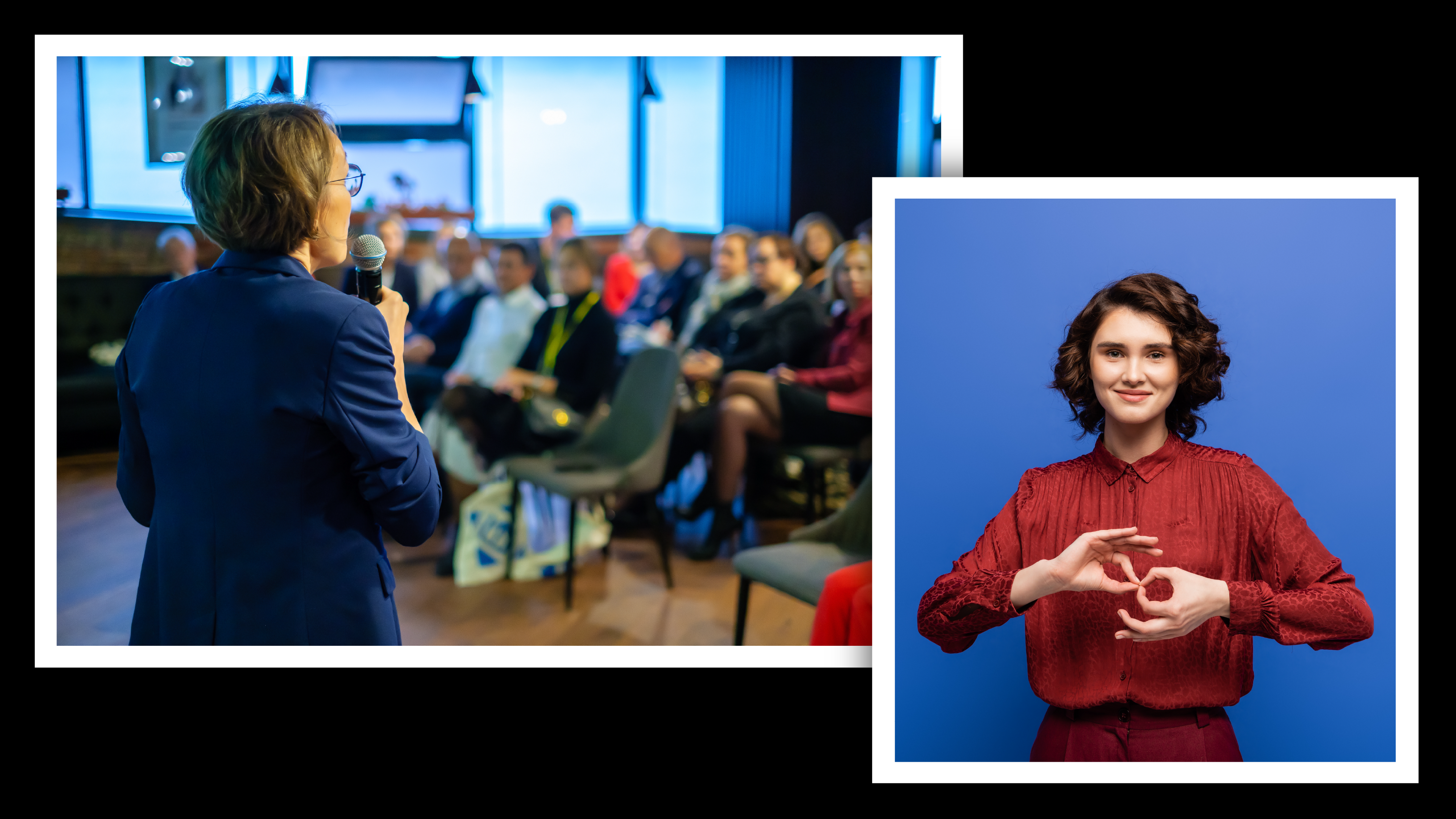
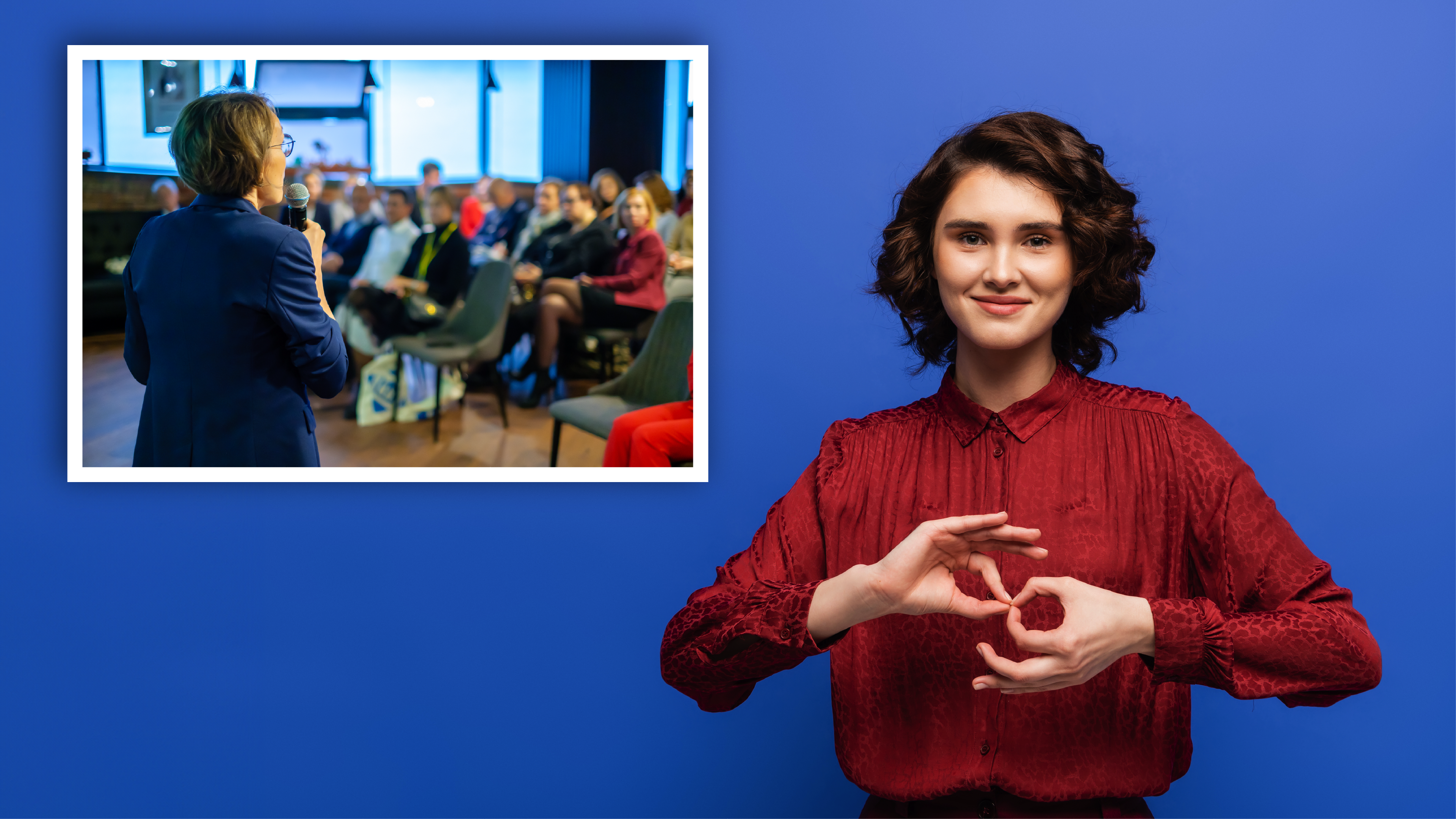
Depending on the content in your video, it can be very valuable to provide an American Sign Language (ASL) interpreter on screen. While this is a WCAG 2.1 AAA requirement, if your video contains critical information, including ASL interpretation is very helpful. A person in the Deaf community may have ASL as their first learned language. If planning for a video to include ASL, when scripting your video, like scripting to include audio descriptions, consider the timing of the editing of your video to leave room for interpretation. As ASL is not a one-to-one translation of English, it can take longer for someone signing to finish a statement than it can to speak it aloud.
Your organization should determine the need to include an on-screen interpreter based on purpose and criticality of your video. If your video contains information that is critical for constituents, such as something that affects the day-to-day life, health and safety, or is a requirement that constituents must comply with, it is recommended to include ASL interpretation.
Examples might include:
- Governor's Office announcements and press releases
- Legal and policy changes that affect constituents
- COVID or other disease strategies and policies
- Local chemical releases like mosquito spraying schedules for Eastern Equine Encephalitis (EEE)
- How to apply for housing, unemployment, veterans benefits or similar services of need
- Getting a Real ID or other documentation required of constituents
- Any content specific for constituents with disabilities
This list is not exhaustive but is meant to give you an idea of the types of content where ASL interpretation is needed.
When including ASL in your video, you can add the interpreter to your video in different ways depending on how it suits the content best. Ensure that there is good contrast between the background and the clothing and hands of your interpreter. If your video player allows for multiple video file upload so people can switch between video tracks, add the ASL interpreted video as a second video track
Following are some examples of video layout for including ASL.
ASL Layout Examples