
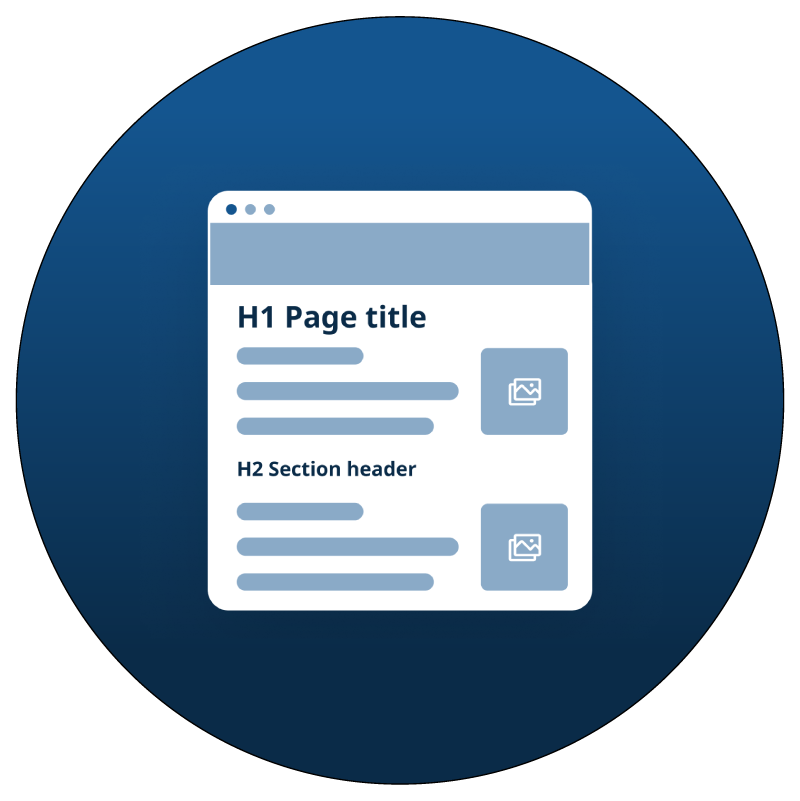
Considerations for structure
A sighted user can visually skim a document or web page, and identify sections by large bold text, or placement on the screen. For someone using a screen reader, the position of items on the screen is not announced, and the size and font of text is also not announced. Because of this, we use proper structure to get that information to the user.
Headings
Headings often appear as text that is bold or larger than the body text. The visual style of headings doesn't have any accessibility requirements beyond standards for text and color contrast. They can look however you want to design them. However, the proper paragraph formatting should be applied.
You will find different heading levels (H1-H6) available in Word in the Styles Pane. In a Content Management System (CMS) or Learning Management System (LMS) you will find this formatting in the toolbar at the top of the text editor. In HTML, headings are set by using the <h1> through <h6> elements. Your primary Heading 1 (H1) describes the content of the document or web page and acts similarly to a title.
A document or web page should only have one H1 level heading. The rest of the headings on the page should follow an outline format under that H1.
Following is an example of the simple heading outline for the homepage of Mass.gov.
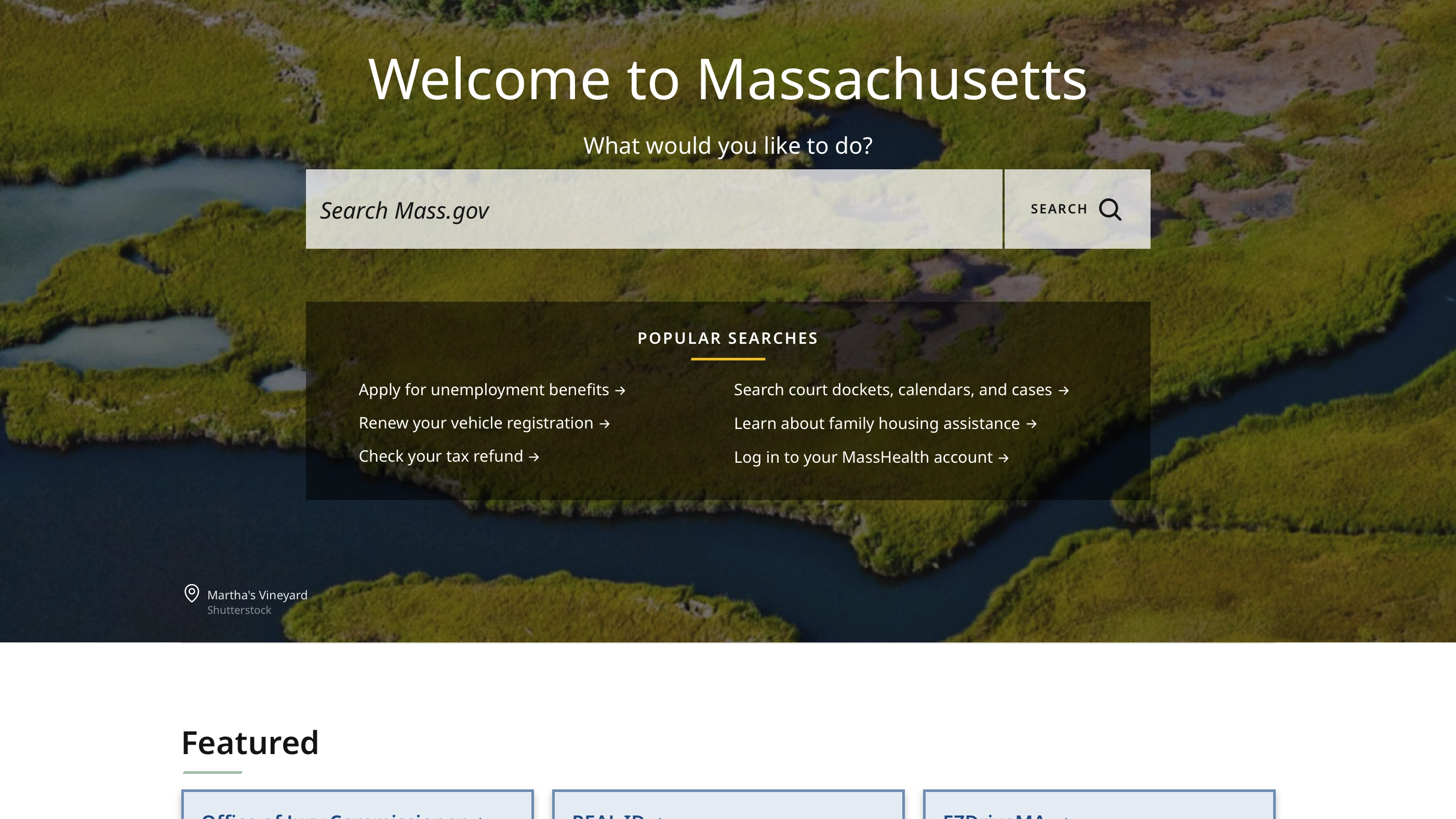
- H1 - Welcome to Massachusetts
- H2 - Popular searches
- H2 - Featured
- H2 - News and updates
- H3 - Urban tree-planting grants
- H3 - Hurricane safety tips
- H3 - Find a fishing spot
Heading structure may be more complex, depending on how much content is on a page. It is important not to skip heading levels. Don't choose your headings based on how the text looks. If you want to change how the text looks, you can do so without changing the heading level in Word or in HTML. A CMS or LMS generally has styles tied to the heading level, so individuals won't be able to make changes to how those headings appear visually. Following are correct and incorrect examples of heading order.
Correct heading formatting
- H1
- H2
- H2
- H3
- H2
- H3
- H4
- H2
Incorrect heading formatting
- H1
- H2
- H4 Incorrect
- H4 Incorrect
- H2
- H5 Incorrect
- H3 Incorrect
Titles
A document or page title is always important and doesn't happen automatically. For a document, it isn't the same thing as the file name. On a web page, it isn't the same thing as a Heading. A title must be set in the metadata in a Word document and a PDF, and on a web page in the HTML. While headings tell the user where they are in your document or web page, the title tells a user what document or web page they are on. This is especially important if a user would have multiple documents or web pages (tabs) open at the same time.
Titles in documents
Word documents allow you to set a title that is not visible on the page, and it is unrelated to the Title Style in the Styles Pane. This title is announced to a screen reader user when the document is selected. PDFs also allow you to set a title, and the accessibility checker in Acrobat Pro will prompt you if you do not have a title set. Typically the title and the Heading 1 in your document will be the same or very similar.
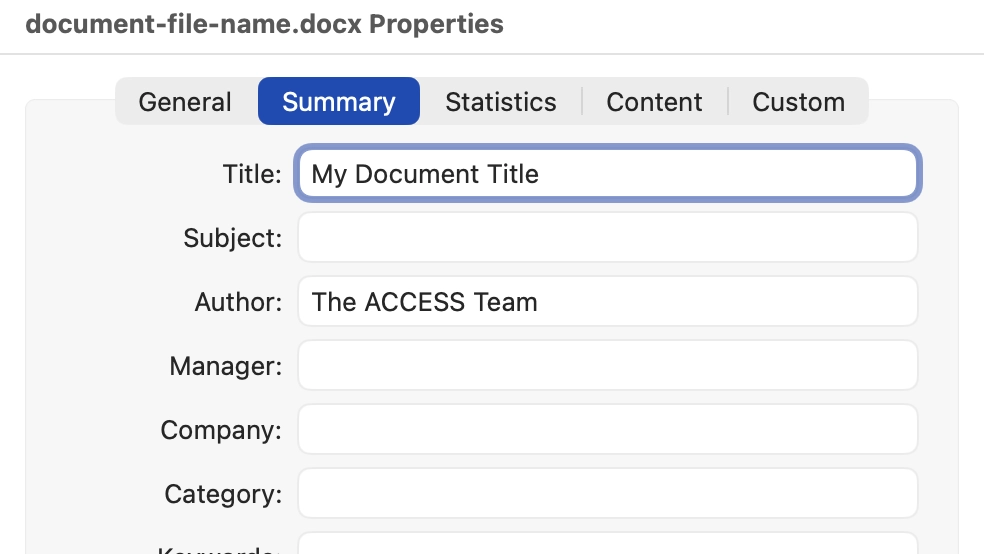
In Microsoft Word:
- In the men bar select File > Info > Properties (Windows) or File > Properties (Mac)
- Select the Summary tab in the panel that appears
- Add the title of your document
- Select OK
Titles on web pages
Generally, your title will be very similar to your Heading 1 (H1), but it may contain a little more information such as your organization name. If that is the case, the unique information should go first, rather than the organization.
A good title example
Title: Unemployment Application - Department of Unemployment Assistance (DUA)
Heading 1: Unemployment Application
A bad title example
Title: Programs and services
Heading 1: What would you like to do?
In the good title example, the title and heading are very similar. The title lets the user know the additional information of where the web page came from: the Department of Unemployment Assistance.
In the bad title example, the title "Programs and Services" is very generic. This could be for any agency or any state. Also, the heading "What would you like to do?" doesn't work as an H1, because it doesn't tell the user the topic of the page. That could work later in the page as an H2 or H3, but a title and H1 need to identify the purpose of the document or page.
Code - Title and H1
<head>


<title>Unemployment Application - Department of Unemployment Assistance (DUA)</title>


</head>


<body>


<h1>Unemployment Application<h1>

</body>
Avoid using generic titles that might also be used by another department or agency in your organization if possible.
Lists
In any document or web page lists should use proper formatting. This is important for screen reader users, because it lets them know how many items are in a list, and when each item starts and ends. If list formatting is not used, lists will be read out as a paragraph of text, and the screen reader user will not be able to easily navigate between each list item.
If you are using a text editor in a CMS or LMS, or making a Microsoft Office document, be sure to use tools for ordered (numbered) or unordered (bulleted) lists. If making a web page in HTML, it's also important that you use the appropriate ordered <ol> or unordered <ul> tags.
Code - Unordered list example
<ol>

<li>Bullet one</li>

<li>Bullet two</li>

<li>Bullet three</li>

</ol>
Landmarks on web pages
To help a screen reader user jump to sections on a web page, your HTML needs to include landmarks. Typically a page will contain at least thenav,
main and contentinfo (footer) elements.
Learn more about HTML landmarks (opens in new tab)