
Making PDFs accessible
This second part of the PDF guide will walk you through:
- The Accessibility Checker
- Reading order
- Graphics and alt text
- Working with tables
- The tags panel
- Document structure
- Language settings
- Document settings
Using the Accessibility Checker
The built-in automated Accessibility Checker helps identify potential accessibility issues in a PDF. It can find missing document properties, missing alt text, tagging issues, and other common accessibility problems. However, the Accessibility Checker results are not a remediation checklist. Like other automated accessibility testing tools, it can identify some accessibility issues, but many accessibility features still require manual review. For this reason, the results from your first accessibility check are often only a starting point.
To run the Accessibility Checker, select the Accessibility Check button in the Tools pane. This opens the Accessibility Checker Options dialog box. Unless you want a detailed report, uncheck Create accessibility report and select Start Checking.
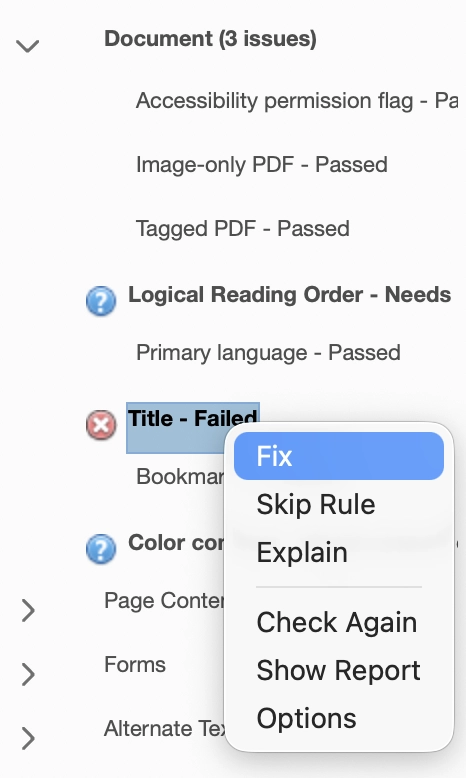
The Accessibility Checker opens in the Tasks pane. If issues are present, the number of issues will appear beside each category.
In this example, three issues were found. Two are marked Needs manual check, and one is marked Failed.
Items marked Needs manual check, such as Color Contrast and Logical Reading Order, always require human review. Acrobat cannot determine whether these items are accessible. These two manual checks will continue to appear because Acrobat cannot automatically verify them.
Some issues reported by the Accessibility Checker may be resolved as you correct the reading order, tags, tables, images, and other structural issues. Use the checker to identify potential problems, then review the document manually and address issues as you work.
If an item fails, you can right-click it and select Fix if it's available. Acrobat may correct the issue automatically or open a tool or dialog box to help you resolve it. If you are unsure what an item means, right-click it and select Explain to open Adobe's documentation.
Run the Accessibility Checker throughout the remediation process and again before publishing to help verify your work.
Reading order and graphics
Acrobat includes two different tools for working with reading order:
- Order pane:
- Shows the sequence Acrobat uses for page content. Use it to review and reorder content by dragging items in the list. This pane is typically docked to the left-hand side of the Acrobat Pro window in the Acrobat Classic view.
- Reading Order tool:
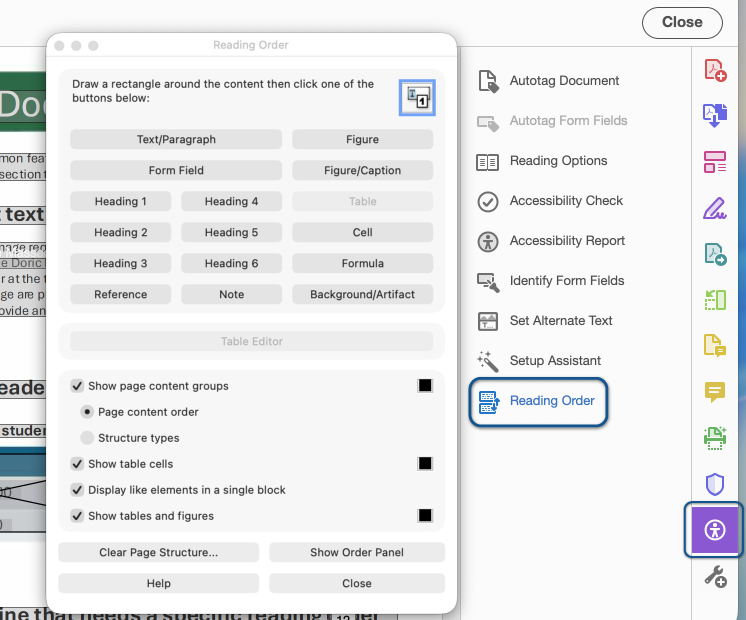
- Lets you identify what content is (heading, paragraph, figure, table, background/artifact) and provides access to features such as alternate text and the Table Editor. This tool is found in the Accessibility tools pane and pops up as a window you can move around your desktop.
Although they have similar names, they serve different purposes and are often used together during remediation.The Reading Order tools in Acrobat help you review the order in which content is read by some assistive technology. They can also be used to identify graphics, mark decorative content, and edit alt text. Later in this training, you will use the Accessibility tags panel to verify and refine the document structure. The Order pane is typically used first to review the reading sequence. The Reading Order tool is then used to identify content types, edit alternate text, and work with tables.
If your document contains graphics, floating text boxes, multiple columns, or other complex layout elements, you should review the reading order to make sure the content is presented in a logical sequence. Even when a PDF appears correct visually, the reading order used by assistive technology may be different.
Accessible source documents created from Word, InDesign, or other source applications may contain reading order information, but it should still be reviewed during remediation.
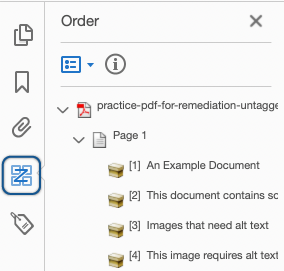
To view the reading order, select the Order button. If the Order button is not present, go to View > Show/Hide > Naviation Panes > Order.
You can open the the Reading Order tool by selecting the Accessibility button in the right hand tools pane, then select Reading Order.
Reviewing and correcting the reading order
The Order pane displays the order Acrobat uses for page content. This order often affects how content is presented to assistive technology. Each item in the Order pane corresponds to a numbered region in the Document pane.
Reading order problems are common when a document contains floating text boxes, graphics, multiple columns, footnotes, endnotes, or other complex layout elements.
Review the numbered items in the Document pane and compare them to the order in which the content should be read. A list of items is available for each page in the Order pane, each beginning with 1.
If the reading order is incorrect, drag items to a new position in the Order pane.
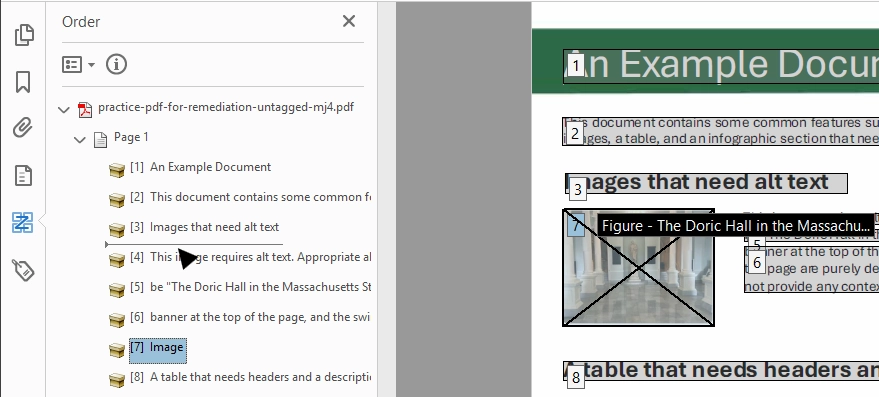
After making changes, review the document again to confirm that the content follows the intended reading sequence.
The Reading Order tools can affect the underlying structure of a PDF. After correcting the reading order, always review the Accessibility tags panel to verify that the document structure is still correct.
Removing decorative and background graphics from the reading order.
Some graphics do not provide meaningful information and should not be included in the reading order. Common examples include background shapes, decorative images, borders, and other visual design elements.
If a decorative item has been identified as a figure or appears in the reading order:
- Select the item in the Document pane by selecting the reading order number in the upper-left corner of the highlighted area.
- With the Reading Order tool open, select Background/Artifact.
This marks the item as decorative so it is ignored by assistive technology and removed from the reading order.
In some cases, Acrobat may continue to expose a decorative item in the tag structure even after it has been marked as a Background/Artifact. If this happens, review the item in the Accessibility tags panel and make sure it is not represented by a <Figure> tag or another meaningful content tag. You may need to select the content container and Change tag to artifact. Visit Fixing decorative content in the tags tree for instructions.
Editing alt text on graphics
If a graphic conveys information that is not already available in the surrounding text, it should have meaningful alt text. Decorative graphics should be marked as decorative instead of receiving alt text. For guidance on writing effective alt text, visit the Alt Text training resource.
If alt text was added to the source document and the PDF was exported using accessibility-preserving settings, the alt text is usually included in the PDF automatically.
To edit the alt text for a graphic:
- Right-click the reading order number in the upper-left corner of the graphic while the Reading Order tool is open.
- Select Edit Alternate Text.
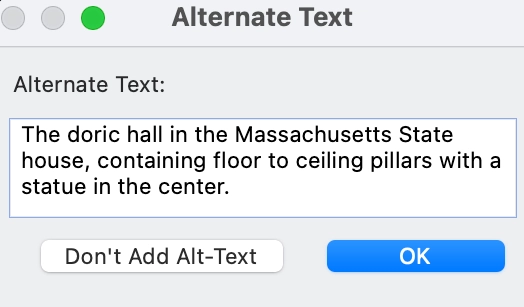
- The Alternate Text panel opens. Enter a description in the Alternate Text box and select OK.
Tables
Tables should be used to present data, not to control layout or visual formatting. Before remediating a table in Acrobat, consider whether a complex table would be easier to fix in the source document. Tables can be one of the most complex content types to remediate in a PDF.
Before editing a table, open the Reading Order tool. The Reading Order tool provides access to the Table Editor and Table Cell Properties.
With the Reading Order tool open, select the table, then right-click inside the highlighted table and select Table Editor.
An overlay identifying the table cells appears on the table. You will see the letters TH or TD in the corner of each cell. TH identifies a table header cell, and TD identifies a table data cell. If the TH and TD labels are not visible, right-click a table cell and select Table Editor Options. Under Label Options, select Show cell type (TH or TD).
Table headers are important because screen readers use them to provide context for the data in a table. For example, when a user navigates to a data cell, the screen reader can announce the associated row and column headers.
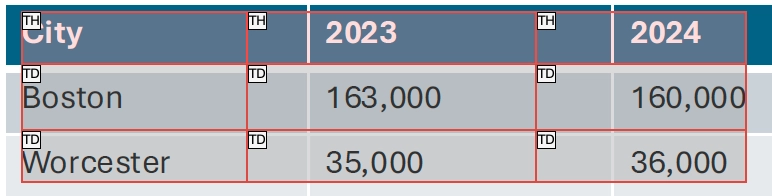
To change a cell to a header cell:
- Right-click the TD label in the corner of the cell.
- Select Table Cell Properties.
- Under Type, select Header Cell.
- Select OK.
Repeat this process until all header cells and data cells are identified correctly.
Some complex tables may require additional remediation beyond identifying header and data cells. For example, you may need to define cells that span multiple rows or columns, specify the scope of header cells, or establish relationships between headers and data cells. Unlike Word, PowerPoint, or Excel, PDF tables can support multiple header rows, multiple header columns, and more complex header relationships in an accessible way. However, these types of tables can be difficult and time-consuming to remediate in Acrobat. If a table contains multiple header rows or columns, merged cells, or a complicated layout, consider whether it would be easier to redesign or simplify the table in the source document before continuing remediation.
Working with the Accessibility tags panel
The Accessibility tags panel displays the structure that most assistive technology uses to understand a PDF. Tags identify content such as headings, paragraphs, lists, tables, images, and links.
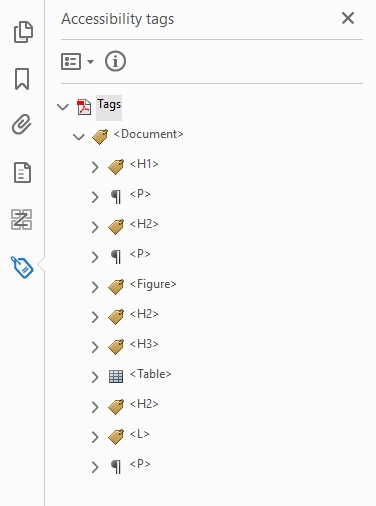
To open the Accessibility tags panel: Select View > Show/Hide > Navigation Panes > Accessibility tags.
The Accessibility tags panel displays a tag tree that represents the structure of the document. As you select tags in the tag tree, the corresponding content is highlighted in the Document pane. This makes it easier to verify that content has been identified correctly.
When you expand a tag, you may find one or more content containers associated with it. These content containers represent the text, image, or other content associated with the tag.
Tags are organized in a hierarchy. Some tags contain other tags, and most tags contain one or more content containers.
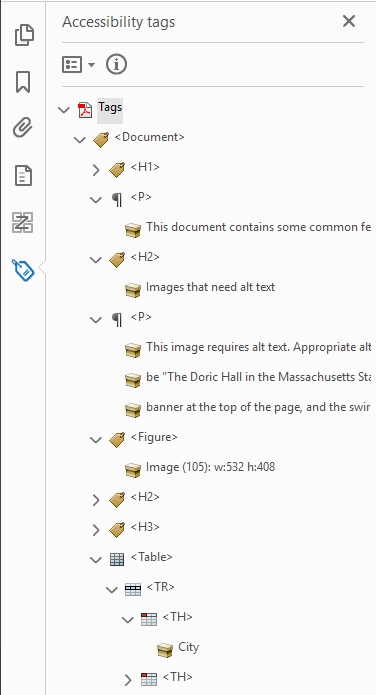
A tag that contains another tag is referred to as a parent tag, and the nested tag is referred to as a child tag. Understanding these relationships will help you review document structure and correct tagging issues.
It is common for a single paragraph, heading, or other element to contain multiple content containers. For example, a <P> tag may contain several content containers because of formatting, line breaks, or how the PDF was created.
In most cases, this is not a problem as long as the content is contained within the correct tag and is read in the correct order. Focus on whether the correct tag has been applied and whether the content is presented in a logical reading order. Multiple content containers within a tag do not necessarily indicate an accessibility issue.
Review the tag tree and look for the following common tag types and structures.
Headings
Heading tags identify the structure of a document and help assistive technology users navigate between sections.
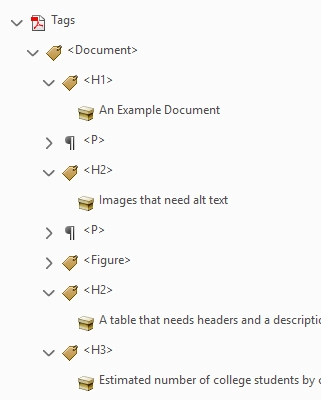
- <H1> identifies the main title of the document.
- <H2> through <H6> identify subsections.
- Verify that visible headings are tagged as headings.
- Verify that heading tags follow the same hierarchy as the visible document structure.
- Verify that there is only one <H1> tag in the document.
If a heading has been incorrectly tagged, right-click the tag and select Properties. Use the Type dropdown list to select the appropriate heading level.
Paragraphs
Most body text in a document should be identified with paragraph tags.
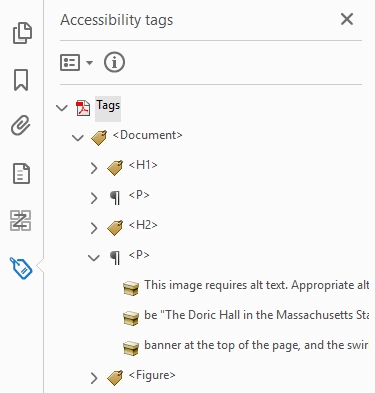
- <P> identifies paragraph content.
- Verify that body text is tagged as paragraphs.
- Verify that headings are not tagged as paragraphs.
- Verify that paragraph text is not incorrectly tagged as another content type, such as a heading, figure, or table.
- Multiple content containers within a paragraph tag are common and do not necessarily indicate a problem.
If paragraph text has been incorrectly tagged, right-click the tag and select Properties. Use the Type dropdown list to select the appropriate tag type.
Lists
Lists should be identified as lists rather than paragraphs. Proper list tags help assistive technology identify the beginning and end of a list and navigate between list items.
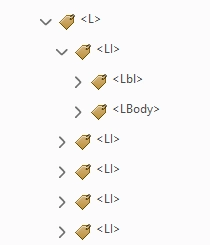
- <L> identifies a list.
- <LI> identifies a list item.
- <Lbl> identifies the bullet, number, or label associated with a list item.
- <LBody> identifies the content of a list item.
- Verify that bulleted and numbered lists are tagged as lists.
- Verify that all list items are included in the list.
- If a list spans multiple pages, make sure the list continues correctly across the page break.
Figures
Images and graphics are typically identified as figures.
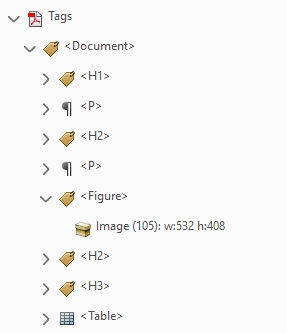
- <Figure> identifies an image or graphic.
- Verify that meaningful images are tagged as <Figure>.
- Verify that the figure has alt text.
- Decorative graphics should not appear in the Accessibility tags panel as meaningful content.
If a decorative image still appears in the Accessibility tags panel after being marked as a Background/Artifact, review the tag structure and make sure the image is not represented by a <Figure> tag or another meaningful content tag. Additional guidance for correcting decorative content in the tags tree is provided in the Fixing tags section.
Table tags
Tables use several tag types to identify structure.
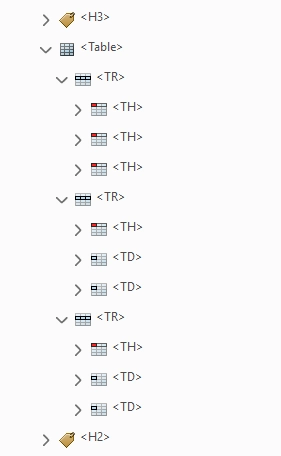
- <Table> identifies a table.
- <TR> identifies a table row.
- <TH> identifies a table header cell.
- <TD> identifies a table data cell.
- Verify that tables are tagged as tables.
- Verify that header cells are tagged as <TH> and data cells are tagged as <TD>.
- Verify that table captions, titles, and surrounding content are not incorrectly included inside the table structure.
A simple table will typically contain a <Table> tag with nested row, header, and data cell tags. More complex tables may contain additional structure to support merged cells, multiple header rows or columns, and relationships between headers and data cells.
Link tags
Links should be identified as links and should contain both a content container and a link object reference (Link-OBJR).
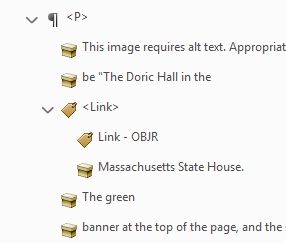
- <Link> identifies a hyperlink.
- Verify that the content containers for the visible link text are contained within the <Link> tag.
- Verify that the <Link> tag contains a Link-OBJR.
- Verify that links are tagged as links rather than paragraphs or other content types.
Links are commonly nested within paragraph tags. When reviewing link tags, focus on whether the link is represented correctly in the tag structure. The quality of link text should have been reviewed earlier in the source document.
Troubleshooting missing Link-OBJRs
If a <Link> tag does not contain a Link-OBJR, Acrobat may not have associated the link annotation with the tag structure. In some cases, you can locate and tag missing link annotations by selecting Find from the Accessibility tags panel options menu and searching for Unmarked Annotations.
Fixing tags
As you review the Accessibility tags panel, you may find tags that are out of order, organized incorrectly in the tag hierarchy, or otherwise do not represent the document structure correctly. The Accessibility tags panel allows you to correct many of these issues.
Common tag fixes include:
- Moving tags to a different location in the tag tree.
- Combining tags that should represent a single element.
- Correcting parent and child tag relationships.
- Removing decorative content from the accessibility structure.
- Identifying the language of parts.
Before making changes, save a copy of your document. Some tag edits can affect large portions of the document structure and may be difficult to reverse.
Moving tags
The order of tags in the Accessibility tags panel affects the order in which most assistive technology encounters content. If a tag appears in the wrong location in the tag tree, you can move it.
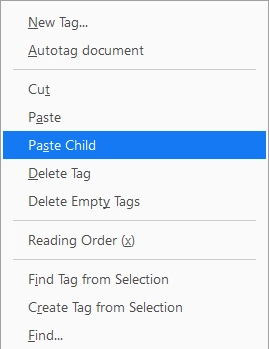
To move a tag:
- Right-click the tag and select Cut.
- Select the tag that should appear immediately before the tag you are moving.
- Right-click the selected tag and choose Paste.
- Select the moved tag and verify that the highlighted content still matches the intended document structure.
To move a tag so that it becomes a child tag of another tag:
- Right-click the tag and select Cut.
- Select the parent tag.
- Right-click the parent tag and choose Paste Child.
- Verify that the tag now appears nested beneath the parent tag.
Moving tags is useful when the tag type is correct, but the content appears in the wrong location in the document structure. This can happen when content has been added, deleted, or retagged during remediation.
You can also drag and drop tags within the tag tree. However, the cut, paste, and paste child methods are often easier to control, especially in large or complex documents.
After moving a tag, review the surrounding tags to make sure the parent and child relationships are still correct.
Combining tags
Acrobat or automatic tagging tools sometimes create multiple tags for content that should be a single element. This commonly occurs with multi-line headings, paragraphs, lists, and content that spans a page break.
Before combining tags, make sure the content represents a single logical element. Do not combine unrelated content simply because it appears close together in the document.
Common examples include:
- A heading that has been split into multiple heading tags.
- A paragraph that has been split into multiple paragraph tags.
- A list that continues onto another page and has been separated into multiple list structures.
- Content that was split during OCR or automatic tagging.
To combine tags:
- Select the tag that should remain.
- Select the content containers or child tags in the tag you want to remove, right-click, and select Cut.
- Paste them into the tag that should remain using Paste Child.
- Verify that the content appears in the correct order.
- If the original tag no longer contains any content containers or child tags, it is now an empty tag. Right-click the empty tag and select Delete Tag.
Multiple content containers within a single tag are common and do not need to be combined unless the structure itself is incorrect.
Fixing decorative content in the tags tree
Sometimes decorative content continues to appear in the Accessibility tags panel even after it has been marked as a Background/Artifact in the Reading Order tool. In Acrobat, decorative content is called an Artifact.
Common examples include:
- Horizontal lines or separators
- Borders and boxes
- Background shapes
- Decorative icons
- Paths
- Other visual design elements that do not convey information
To investigate a suspected decorative item:
- Select the tag in the Accessibility tags panel.
- Verify that the highlighted content in the Document pane matches the decorative item you are reviewing.
- Expand the tag and review any child tags and content containers associated with it.
- Determine whether the content conveys information or is purely decorative.
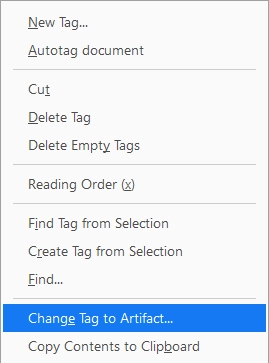
If the content is decorative and still appears in the Accessibility tags panel:
- Open the tag and select the content container associated with the decorative item.
- Right-click the content container and select Change tag to Artifact...
- Repeat this process for any additional content containers associated with the decorative item.
- Delete any empty tags leftover from this process.
- Verify that the decorative content is no longer represented in the accessibility structure.
After making changes, review the surrounding tags to make sure meaningful content has not been artifacted accidentally.
Language of parts
The document language setting applies to the document as a whole. If a document contains words, phrases, paragraphs, or sections written in a different language, that language change should be identified in the Accessibility tags panel.
Common examples include:
- Foreign words or phrases
- Quotations in another language
- Bilingual documents
- Documents that contain entire sections in a different language
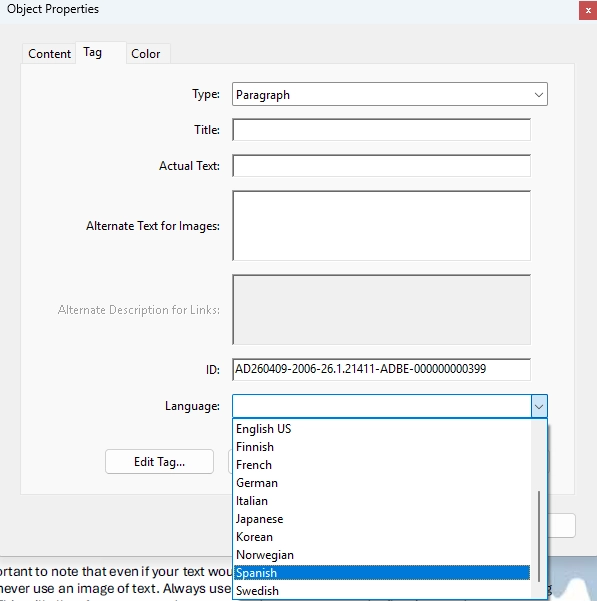
To change the language of a tag:
- Right-click the tag.
- Select Properties.
- Select the appropriate language from the Language dropdown list.
- Select Close.
Apply language settings only to content that differs from the primary language of the document.
PDF forms
This resource does not cover PDF form remediation in detail.
If your PDF contains fillable form fields, use the PDF Forms Accessibility resource for guidance on:
- Adding and configuring form fields
- Form field labels and tooltips
- Form field tags
- Tab order and keyboard navigation
- Testing and remediating PDF forms
Unlike most accessibility issues covered in this resource, PDF form fields are often created or edited directly in Acrobat rather than in the source document.
When reviewing a PDF that contains form fields, verify that the form can be completed using only the keyboard and that focus moves through the form in a logical order. Complete the remaining remediation steps using the PDF Forms Accessibility resource.
Controls and tab order
Some PDFs contain interactive elements that users can select or activate. Common examples of interactive elements include:
- Hyperlinks
- Buttons
- Fillable form fields
- Checkboxes
- Radio buttons
- Dropdown lists
These elements should be accessible to both keyboard users and screen reader users. They should be reachable using the keyboard and receive keyboard focus in a logical order.
For tab order:
- Use the Tab key to move through the interactive elements in the document.
- Verify that a visible focus indicator appears as you navigate through the document. For example, Acrobat may display a border or highlight around the currently selected item.
- Confirm that focus moves in a logical order that matches the way the document is intended to be read and completed.
- Make sure all interactive elements can be reached using only the keyboard.
If the PDF contains fillable form fields, review the keyboard navigation and tab order. Use the PDF Forms Accessibility resource for detailed guidance on PDF form accessibility and remediation.
Document language
Setting the correct document language helps assistive technology like screen readers use the appropriate pronunciation and reading rules for the content.
To set the primary language for the document:
- Select File > Properties.
- Select the Advanced tab.
- Under Reading Options, select the appropriate language from the Language dropdown list.
- Select OK.
The primary language should match the language used for most of the document. If the document contains passages, phrases, or sections written in another language, those should be identified separately in the Accessibility tags panel. Visit Language of parts for instructions.
The Accessibility Checker may report a missing document language if one has not been set.
Document properties
Document properties provide information about the PDF that is used by Acrobat and assistive technology. Before publishing a PDF, verify that the document properties are correct. Missing document properties are commonly reported by the Accessibility Checker, but they should also be reviewed manually from the Properties dialog box.
To view document properties: Select File > Properties.
Review the following properties:
- Title: The document should have a meaningful title that describes the content. This title is document metadata and may be different from the file name.
- Author: Enter the author if appropriate for your organization.
- Language: Verify that the primary language of the document is correct.
- Initial View: Set Show to Document Title so Acrobat displays the document title instead of the file name in the Acrobat window title.
Final review
Before publishing a PDF:
- Run the Accessibility Checker one final time.
- Review any failed items and items marked Needs Manual Check.
- Verify that any remediation changes have been saved.
- Complete the PDF testing checklist.
The PDF testing checklist provides a more comprehensive review of PDF accessibility requirements and should be completed before publishing a remediated PDF.