
What is digital accessibility?

Accessibility in physical spaces is something most of us are familiar with. Most newer buildings have ramps for wheelchair access, braille text embossed on signs, and accessible bathroom stalls. Digital accessibility can be less obvious. If a document, app or website is functioning properly, it should work for everyone, right? Unfortunately, that is not the case.
Different disabilities affect the way a person processes information. A visual layout that isn't intuitive can be difficult for any user, but may completely prevent a user with a cognitive disability from getting anything out of your content. A video without captions isn't helpful to someone with hearing impairments. An interaction that requires drag and drop can be totally unusable to someone with a motor skill disability.
When we create content, we need to make it as usable as possible, so that it can reach the most people. Different types of Assistive Technology (AT) can be employed to help people with disabilities access digital content. It's important to follow standards that allow the use of those technologies. If we don't, we can prevent those technologies from working as expected, which may prevent constituents from being able to access important and sometimes life-altering information.
According to the CDC, about 26% of the people in Massachusetts have some type of disability. That means over a quarter of the people accessing your content at any point in time are relying on it being accessible. Working on accessibility increases usability. When our digital content is more easily usable, everyone benefits. There are fewer support calls and requests, and less frustration for constituents. Not to mention, at some point in our lives, we will all experience a disability whether it's situational, temporary or permanent, so ensuring digital accessibility helps us all.
To know what steps to take to make things more accessible, we follow the Web Content Accessibility Guidelines (WCAG). WCAG (pronounced wuh-cag) is a set of guidelines that help to ensure that digital content is accessible. The guidelines are a large, detailed document, so in the training pages here on Mass.gov, we will break down what you need to do in your role to help contribute to the accessibility of the Commonwealth's digital content.
Disability types
Disabilities can be permanent, temporary or situational. A permanent disability might be something hereditary, or related to injury or disease, such as blindness or paralysis. A temporary disability might be something like a broken hand, or recovery from cataract surgery. A situational disability is when we are unable to use one of our senses due to our environment. This might be a loud subway car where we can't hear a video and rely on captions, or a bright sunny day where dark mode can help us to better view a screen.
There are four main categories of disabilities that we consider when building accessible content. They are:

Assistive Technology comes in many forms to support different disabilities. Some people experience multiple disabilities, and may employ several different technologies.
It's important to note that not everyone with a disability may have access to, or know how to use AT. Just because someone has a visual impairment doesn't mean they know how to read braille or use a screen reader. It is just as important for content to be intuitive and usable, as it is for it to work with AT.
Types of assistive technology
This is not an exhaustive list, but a few different examples of assistive technology tools.
Keyboard

While a keyboard might not seem like a unique piece of AT, many people use a keyboard instead of a mouse to navigate websites, documents and apps. To use a mouse, you must be able to move your fingers, hand, and wrist, and you also must be able to see the screen. Operating systems like Windows and macOS are designed so that you do not need to use a mouse to interact with them. Forms, websites and apps should be designed in the same way, so that keyboard users can interact with them.
High contrast settings
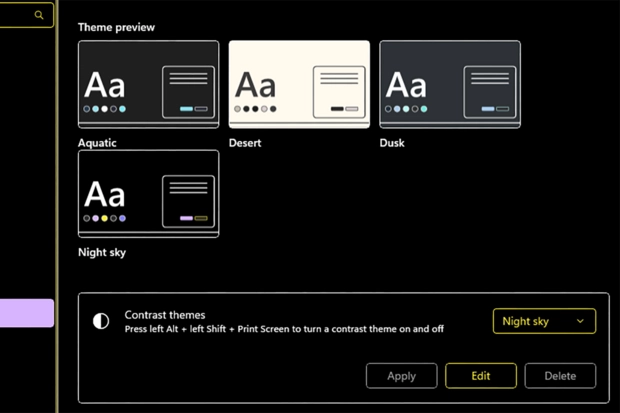
Computers and phones offer high contrast settings for accessibility. While similar to dark mode, these settings offer additional features, like adding dividing lines between sections and buttons, and some offer the ability to set colors for specific items like buttons or form fields. The previous image is of settings for Windows high contrast themes.
Screen readers

A screen reader is software that announces what is on the screen as a user navigates with a keyboard or switch device, or by swiping on their phone. It allows a user to listen to what interactions are possible and select without using a mouse. A screen reader can list out what headings are in a document or web page, so that the user is able to skim through and find what they are looking for. They also can list out interactive content, like buttons, links, form fields, and announce descriptions of images based on what is called alt text. These features of a screen reader rely on proper formatting for documents and proper HTML code on the web. If not formatted properly, the screen reader can't report the correct information to the user.
Switch controls, voice controls, and eye tracking
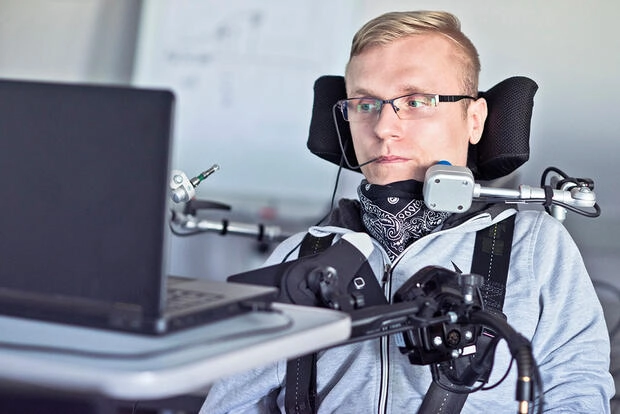
A switch device acts as an alternative to a keyboard, allowing someone to use a limited number of switches to perform actions. These can be controlled by hands, head or cheek movements. Voice controls and dictation are also commonly used by people who may have limited mobility. You maybe familiar with these from your phone's voice assistant, or from software like Dragon Naturally Speaking. There's also software that can use your webcam or specialized cameras to track eye movements and allow you to select an item by blinking.
How do I get started?
The best place to start is with an overview of the kinds of things to be aware of as you are creating documents, content, web pages or applications. Start with our Accessibility Fundamentals to learn about document and page structure, use of color, alternative text, and typography and content.
After that, explore the help pages that apply to your role so you know what steps to take for your day to day work.